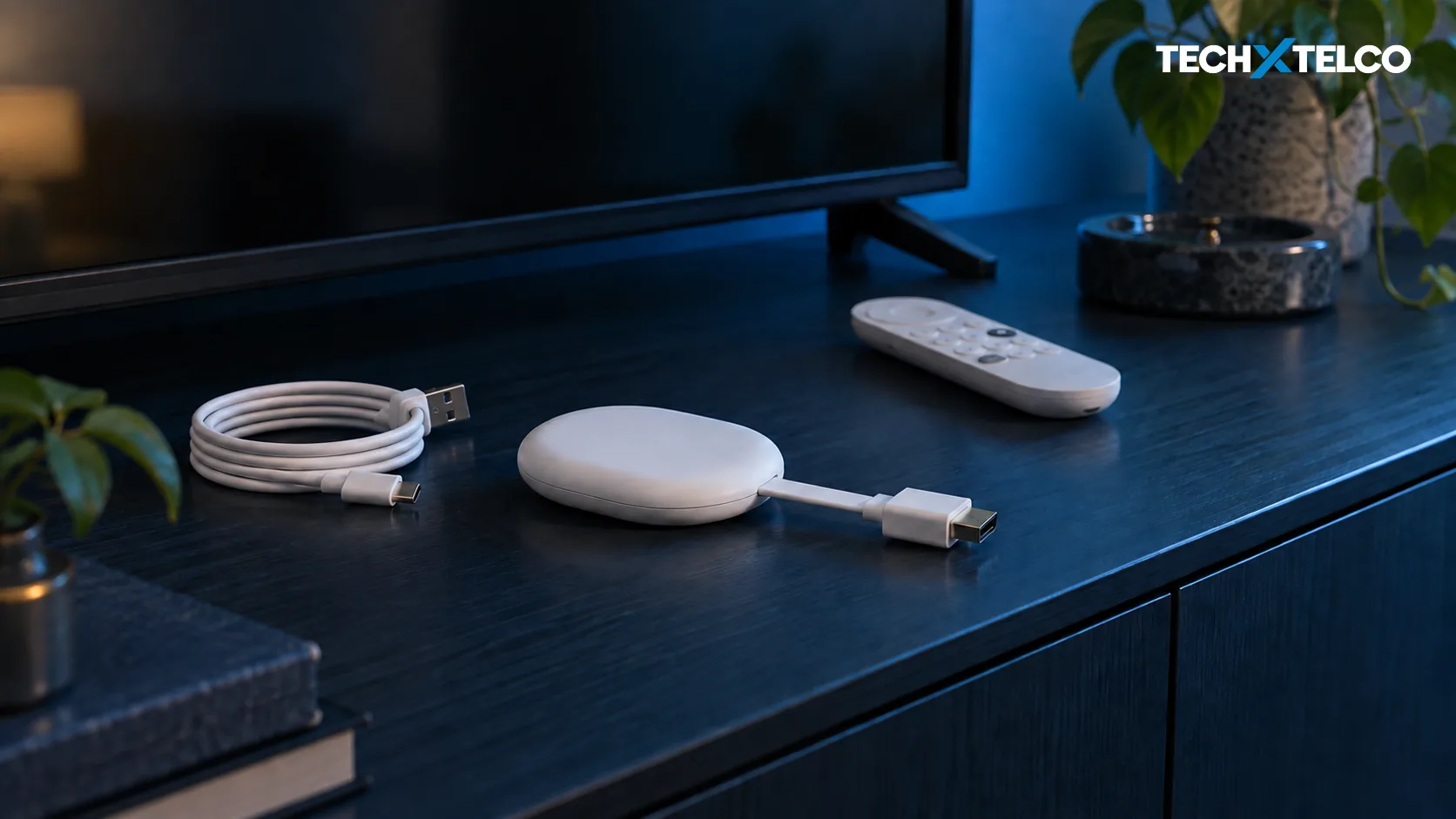

A Chromecast remote that has stopped responding can have a battery, pairing or hardware problem. Work through the cheap checks first, because the reset that fixes it depends on which remote you are holding, and the two current remotes use completely different button presses. Identify the remote before choosing a reset procedure.
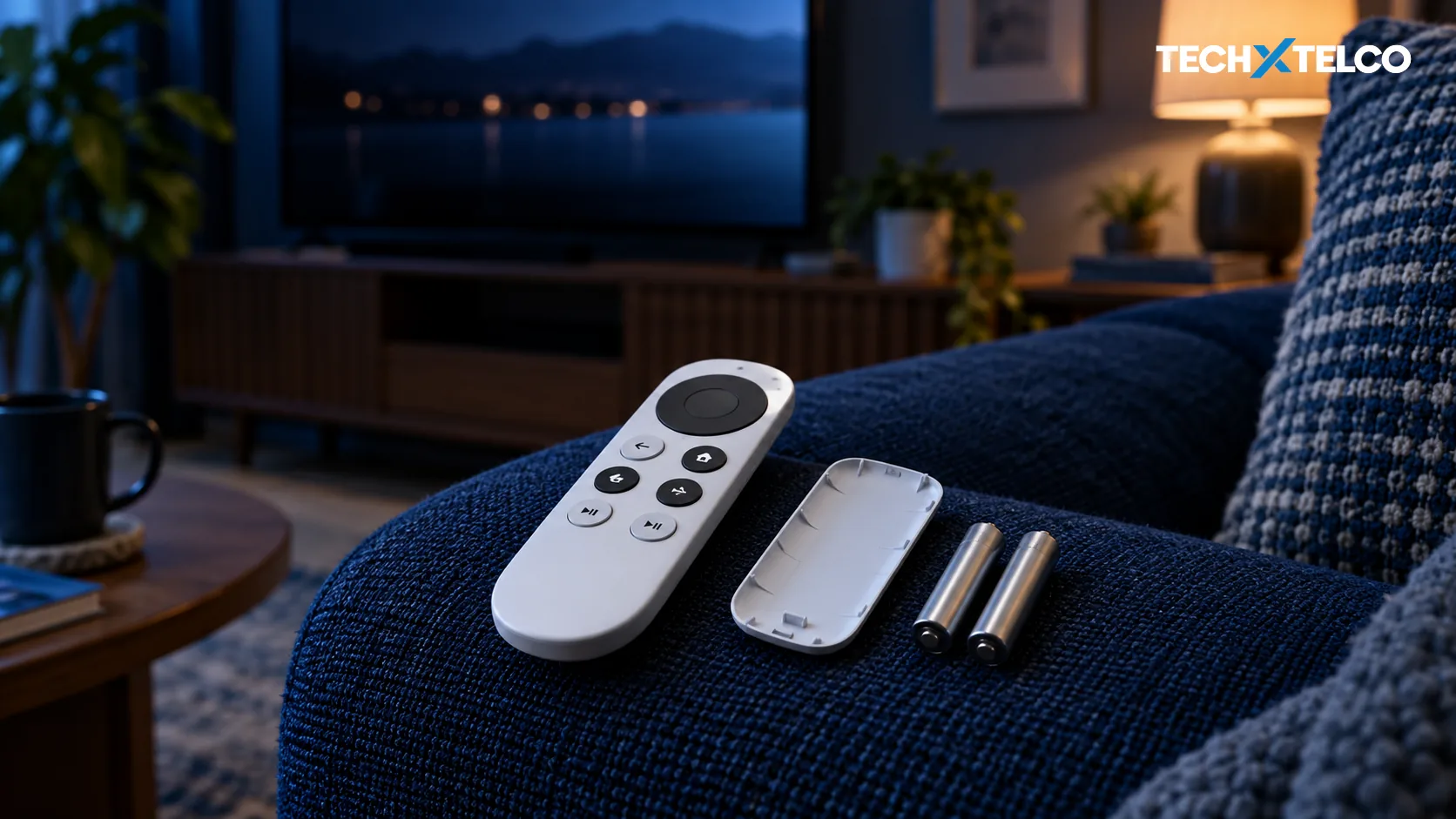
Take both batteries out, put them back in, and watch the small unmarked light on the front of the remote below the buttons. If it flashes twice, the remote has power; this does not establish the cause of the fault. If it does not, work through fresh batteries and a five minute wait before resetting anything.
Do not start by factory resetting the streaming device. Google’s own order is to reboot the streamer, unpair the remote, reset the remote, then set the streamer up again.
Work Out Which Remote You Have
Google’s current documentation covers two remotes: the Chromecast Voice Remote that came with Chromecast with Google TV, and the Google TV Streamer Voice Remote that came with the Google TV Streamer. The reset gesture is different for each and they are not interchangeable. If you own an older Chromecast that never shipped with a remote, none of this applies to you.
Start With Power
Google’s first sequence is about establishing whether the remote is powered at all. The light it asks you to watch is easy to miss: it says the LED is unmarked, sits on the front of the remote below the buttons, and is only visible when it is showing a status light.
Remove both batteries, then reinsert them while watching the LED.
Two flashes means the remote has power. If there are no flashes, keep going.
Remove and reinsert one battery within two seconds, watching the LED again.
Google says to repeat this step if there is still no double flash.
Replace both batteries with the ones that came with the remote, or two fresh 1.5 volt AAA batteries.
Watch for the double flash again.
Remove both batteries and wait five minutes, then reinsert them.
This is the last power check. No flash after this means moving on to the pairing steps.
Navigation Works but the TV Will Not Respond
This is a different fault and it is worth separating early. Google says that if the remote can navigate around the TV but cannot turn the TV on and off or control the volume, then it is probably an infrared problem rather than a remote failure. The fix is to set the TV buttons up again: on your TV, go to Settings, then Remotes and Accessories, then Set up remote buttons.
Resetting the Remote
Google’s order is deliberate. Reboot the streaming device first, then unpair the remote, then reset the remote, then set the device up again. To unpair without a working remote, set your phone up as a virtual remote, then on the TV screen go to your account profile, Settings, Remotes and Accessories, select Voice Remote, then Forget, then Yes.
The Two Reset Gestures
These are not variations on the same action. Using the wrong one simply does nothing.
Chromecast Voice Remote
- Remove both batteries and wait five minutes. Reinsert them while pressing and holding the Home button. Keep holding while the LED turns on and stays solid, then release when the light starts to pulse.
- If it does not pair itself afterwards, press and hold Back and Home together for three seconds.
Google TV Streamer Voice Remote
- Press and hold Mute and the centre Select button together. The LED blinks white, a countdown sound plays after about ten seconds, and you keep holding until the LED turns solid white.
- Google says the reset usually takes no more than twelve seconds to start. The Back and Home pairing shortcut is not documented for this remote.
Two things are worth knowing before you follow those steps. Google publishes the Chromecast Voice Remote procedure twice and the two versions differ: its troubleshooting page opens with the five minute battery wait, while its dedicated reset page has no wait and instead adds an optional check that the batteries still hold charge. It also names the same remote two different ways. And its two pages give the countdown as ten seconds in one place and ten to twelve in the other. The five-minute wait is an extra troubleshooting step, not a contradictory reset method. Follow the sequence for your remote.
If the Remote Still Will Not Pair
For the Chromecast Voice Remote, Google’s next step is to use your phone as a virtual remote, select Pair remote or accessory on the TV screen, factory reset the remote again, wait for it to appear on screen, then tap the select button on your phone. If that fails, it moves to the streaming device: with the Chromecast plugged in and on, press and hold the button on the back, keep holding while the LED blinks yellow, release when it turns solid white, let it reset, then reset the remote again.
Note what that last step does. Google warns that a factory reset returns the device to its default factory settings, clears your data and cannot be undone. It is the end of the sequence, not the start of it.
Sluggish Rather Than Dead
When the Remote Responds Slowly
Try these placement changes one at a time, then check whether response improves.
Sources and How This Was Checked
Every step here is Google’s own published instruction, read on 12 September 2026. Nothing was tested on a device for this article: we had no Chromecast or Google TV Streamer to try it on, so treat this as a faithful reading of the documentation rather than a verified walkthrough. Neither Google page carried a visible published or updated date, so currency is only what we saw on the day.
Where Google’s two pages disagree, we have said so rather than picking one. We have also kept the two remotes apart throughout, because Google’s own pages use two different names for the same Chromecast remote and it is easy to follow the wrong instruction.
Official Pages Used
Google: Troubleshoot the Chromecast or Google TV Voice Remotethe battery and LED sequence, unpairing, the infrared distinction, both reset gestures and the interference tips.support.google.com
Related on Tech X Telco: How to factory reset a Chromecast, but only once you have ruled out the remote itself.
Michel Elijah covers technology, streaming and online security for Tech X Telco. He writes practical how-to guides on everything from email troubleshooting to spotting the latest scams doing the rounds in Australia, with a focus on clear steps anyone can follow.
Spotted something wrong? Corrections are recorded in the open. Report a correction